Public page, theme and domain
Your public page is the community's shop window: calendar, map, selected posts and the join button.
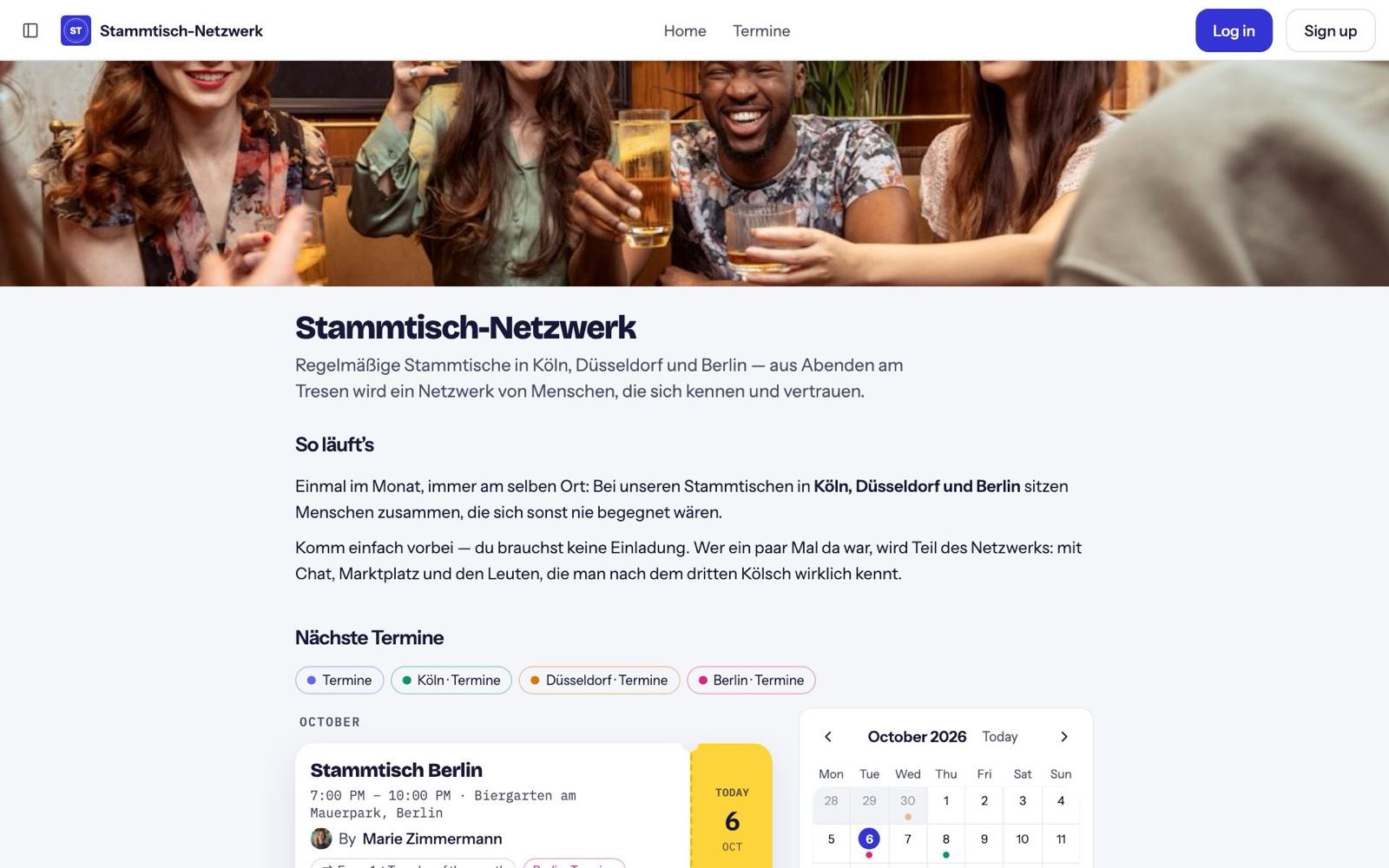
Turn it on
If you started with your first event, it already exists. Otherwise go to Admin → Public visibility, choose a public name and address, and click Turn on public visibility.
What is public
- Spaces are public when their access is set to "Everyone" (space settings). Chats always stay private.
- Calendars are made public one by one under "Event page", where you can also add "Events" to the navbar.
- Everything else is for members only.
Page settings
- List in Explore: your community appears in the directory on nori.club.
- Public name, description and a custom footer line.
- Welcome email for new members.
- Join rules (see Members, invites and roles).
Changes go live with Publish changes.
Theme
Under Admin → Theme you pick a preset (Ocean, Forest, Sunset, Berry, Rose, Slate, Sand) and preview it light and dark. Name, description, icon, banner and logo live under Admin → Branding, as does the community language.
Addresses
Under Public visibility → Addresses:
- Change address: old links redirect automatically.
- Own subdomain: "Serve at {address}.nori.club".
- Custom domain: add two DNS records at your domain provider, then click Check:
CNAME your-domain → nori.clubTXT _nori-verify.your-domain → <your publishing key>(shown in the dialog)
With a custom domain, your community appears under your name everywhere — including in the emails to members.
Newsletter
Under Admin → Newsletter you switch on a signup form for your public page. It appears in the footer or as a page section. You see all addresses, can add or unsubscribe them, and copy them all.
Take the page down
Under Admin → Advanced → Take the page down. The community itself stays.